Window, palette, sync
The window has a few zones with fixed jobs, and every action can be reached in several ways: by click, right click, shortcut and palette. This page shows what lives where.
- Edition
- Free
- Palette
- ⌘/Ctrl+K
- Branch switcher
- ⌘/Ctrl+B
- Back/forward
- ⌘/Ctrl+[ and ]
- Account
- none
The zones
At the top the tabs, below them the context bar, on the left the sidebar, in the middle the main area, on the right the inspector, at the bottom the status bar.1 The main area is never empty: if there are changes it shows the changes view, otherwise the history. The sidebar is navigation only: a filter field, the places Working copy, History, Files and Radar and below them the references as a tree (branches, remotes, tags, parked changes, stashes, worktrees, submodules, pull requests). Sections appear only if the repository has them. ⌘/Ctrl+\ hides it, ⌘/Ctrl+I the inspector, which follows the selection (tabs Details and Explain).
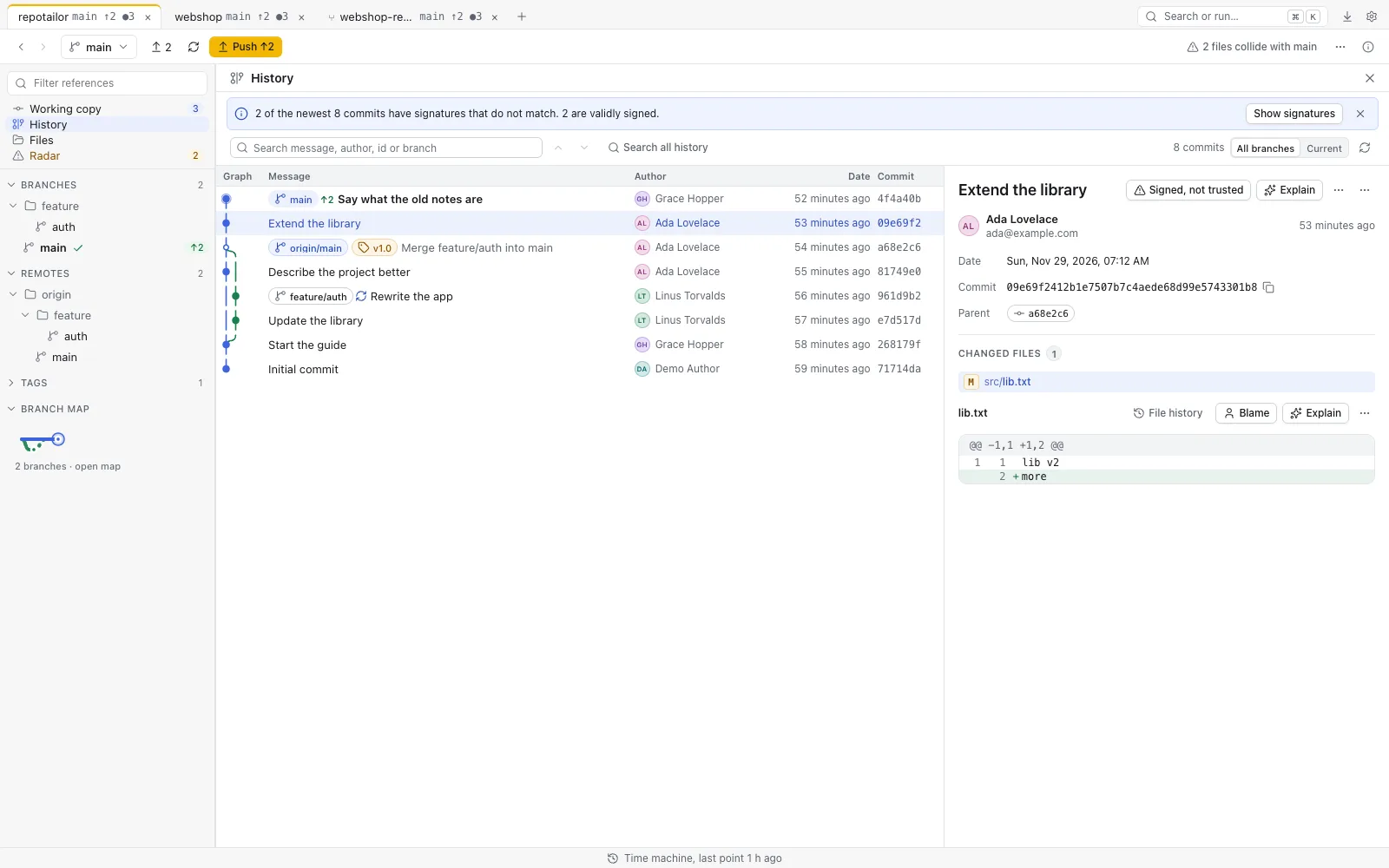
The status bar reports what the last action did, with Undo; the clock next to it opens the time machine (Undo and time machine). There is light, dark or system and two densities. On the first start RepoTailor shows the recently opened repositories, accepts a dropped folder or an address from the clipboard and asks once whether you want AI with your own key; the default is “not now”.
Command palette ⌘K
⌘/Ctrl+K opens the palette and finds every action2, including those of extensions, with their shortcut. The first character picks the mode: > commands, # commits, @ branches, / files. What used to live in menus and tiles (“Paste Git command…”, maintenance, stacks, hooks, practice ground) is reachable here; the menu entries on the repository (“More repository actions”) stay as well.
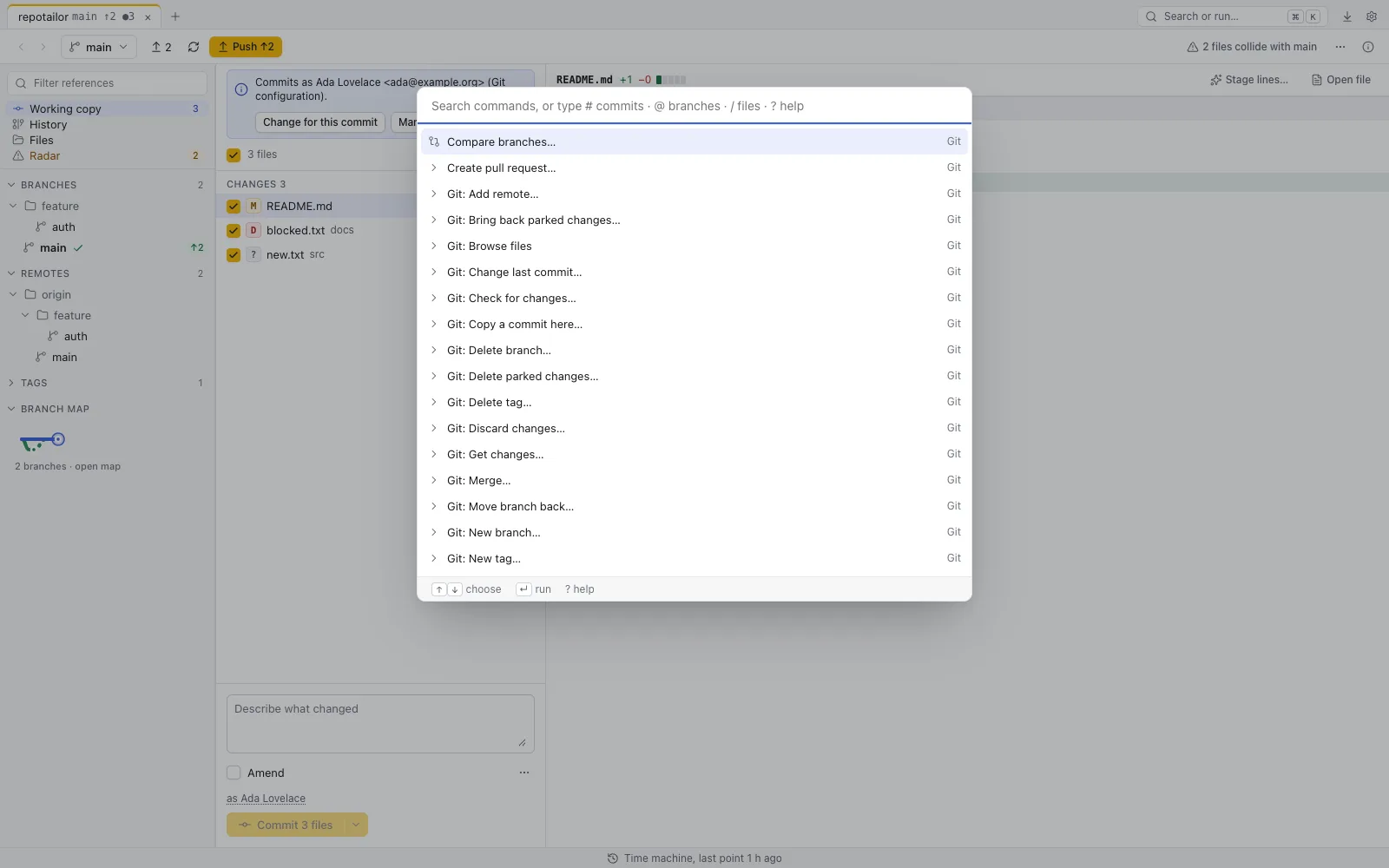
Budget: the first result after at most 50 ms with 500 commands (a limit, not a measurement).
Branch switcher ⌘B
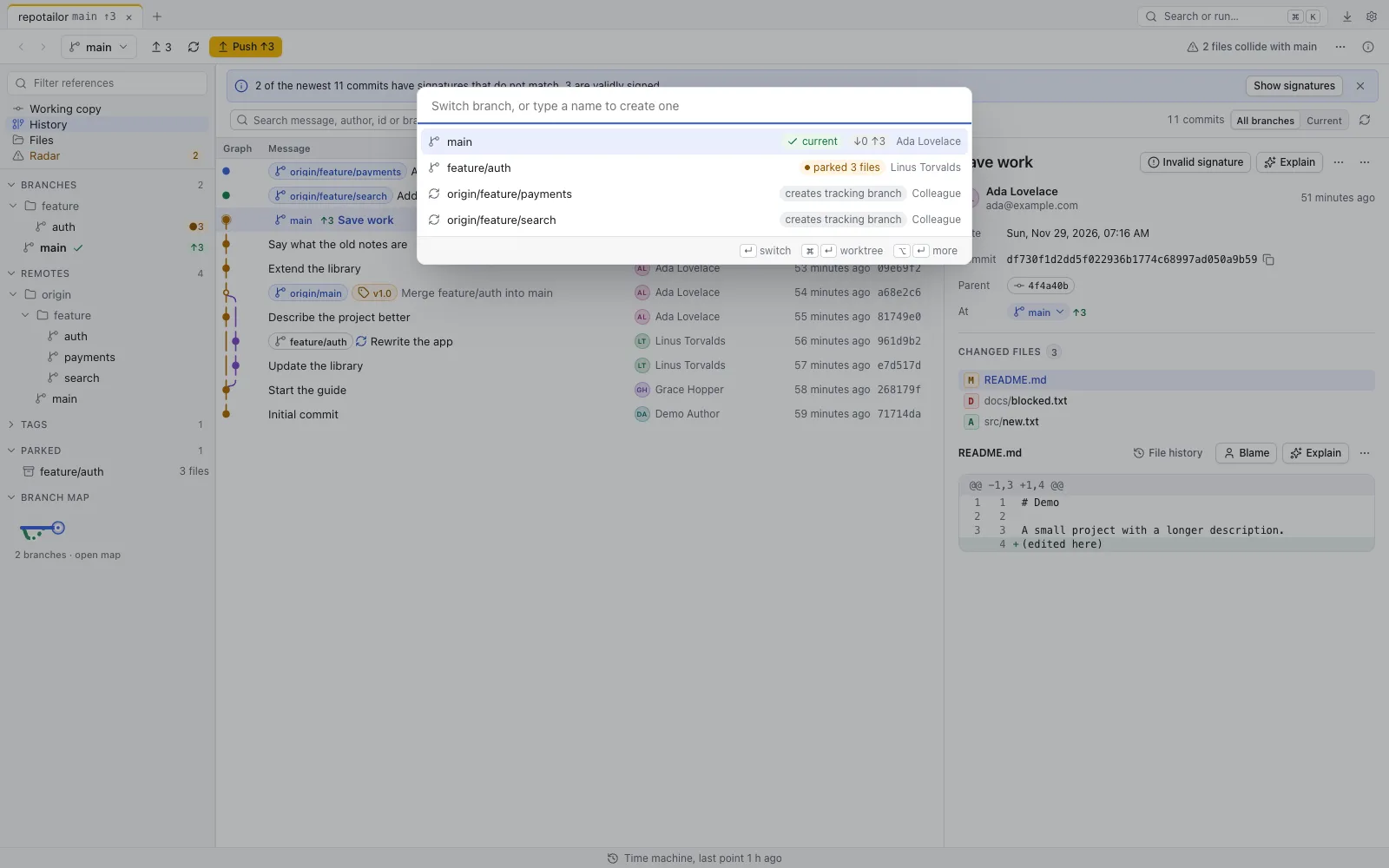
⌘/Ctrl+B opens an input from anywhere3. Without input the previous branch is on top, then the recently used ones, the local ones by commit time and the remote branches without a local counterpart. Each row shows ahead/behind, parked changes and the age. Enter switches; with uncommitted changes the plan (“… files will be parked …”) stands in one line below. A remote branch is created as a tracking branch in one step, with one undo. If nothing matches, the last row offers to create it.
Back and forward
⌘/Ctrl+[ and ⌘/Ctrl+] go through the views and selections you visited4 (on Windows also Alt+←/→, plus mouse buttons 4 and 5). The history lives in memory only and never changes the repository. “Back to the previous branch”, by contrast, is a real Git operation: plan, parking, hooks and undo, reachable through the hint in the status bar, the palette or ⌘/Ctrl+Shift+B.
Sync with the remote
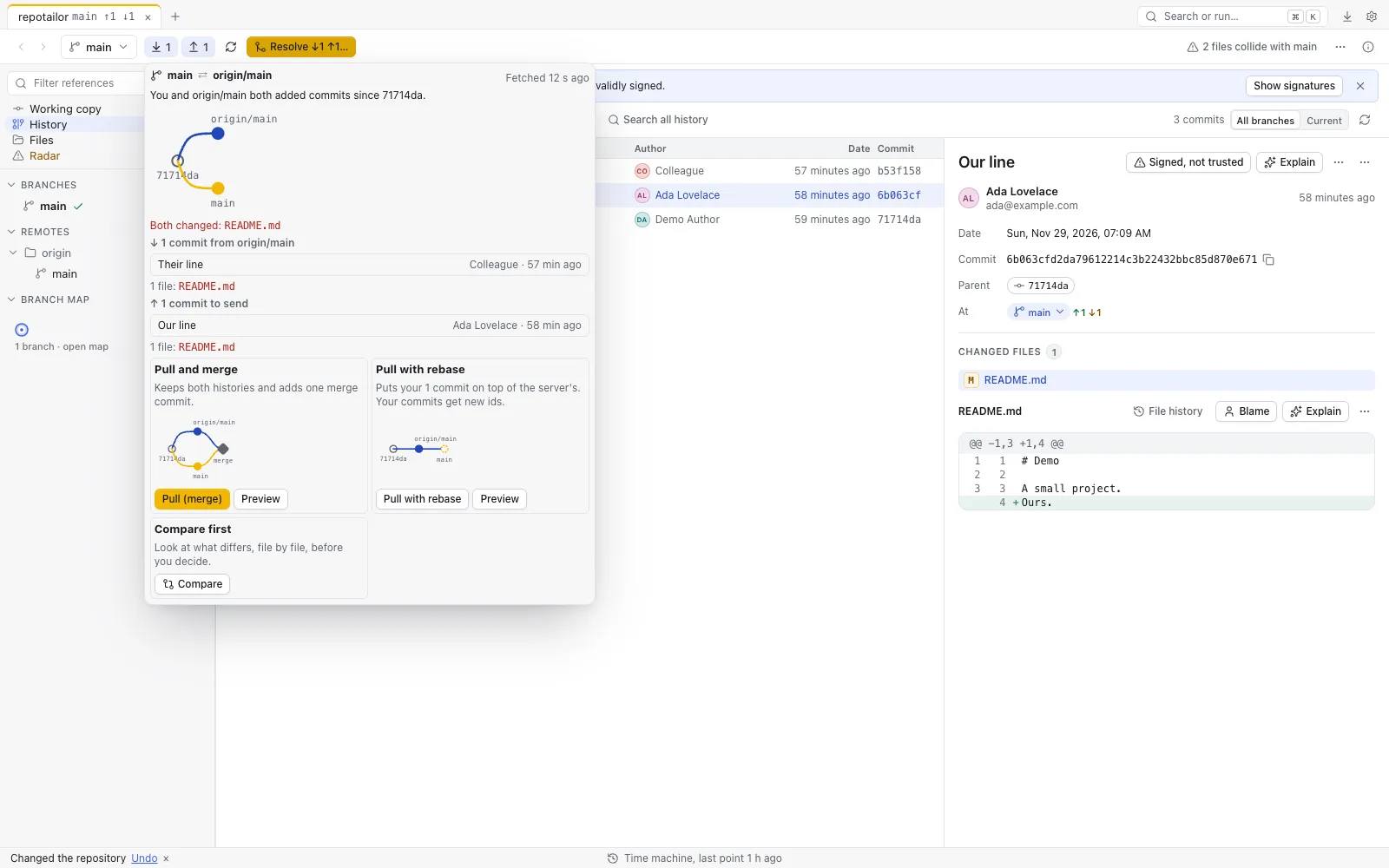
Next to the branch button you see where you stand against the upstream5: ↓ incoming, ↑ outgoing, fetch, and a main action that the state picks (Fetch, Pull, Push, Publish branch or, when both sides moved, “Resolve”). A click on a number opens a popover with the commits, the files and the plan including the Git command; every option has a preview and afterwards undo. For a diverged branch the popover draws the common base and the two arms and offers Pull (merge), Pull with rebase and Compare. Force push is never the default. Keys: pull ⌘/Ctrl+Alt+↓, push ⌘/Ctrl+Alt+↑, fetch ⌘/Ctrl+Shift+R.
The Compare view compares any two refs: on the left the commits only there, on the right only there, below the files with plus/minus bars and the diff; ⇄ swaps the sides. The numbers equal git rev-list --left-right --count and git log a..b; the core checks that against real git.
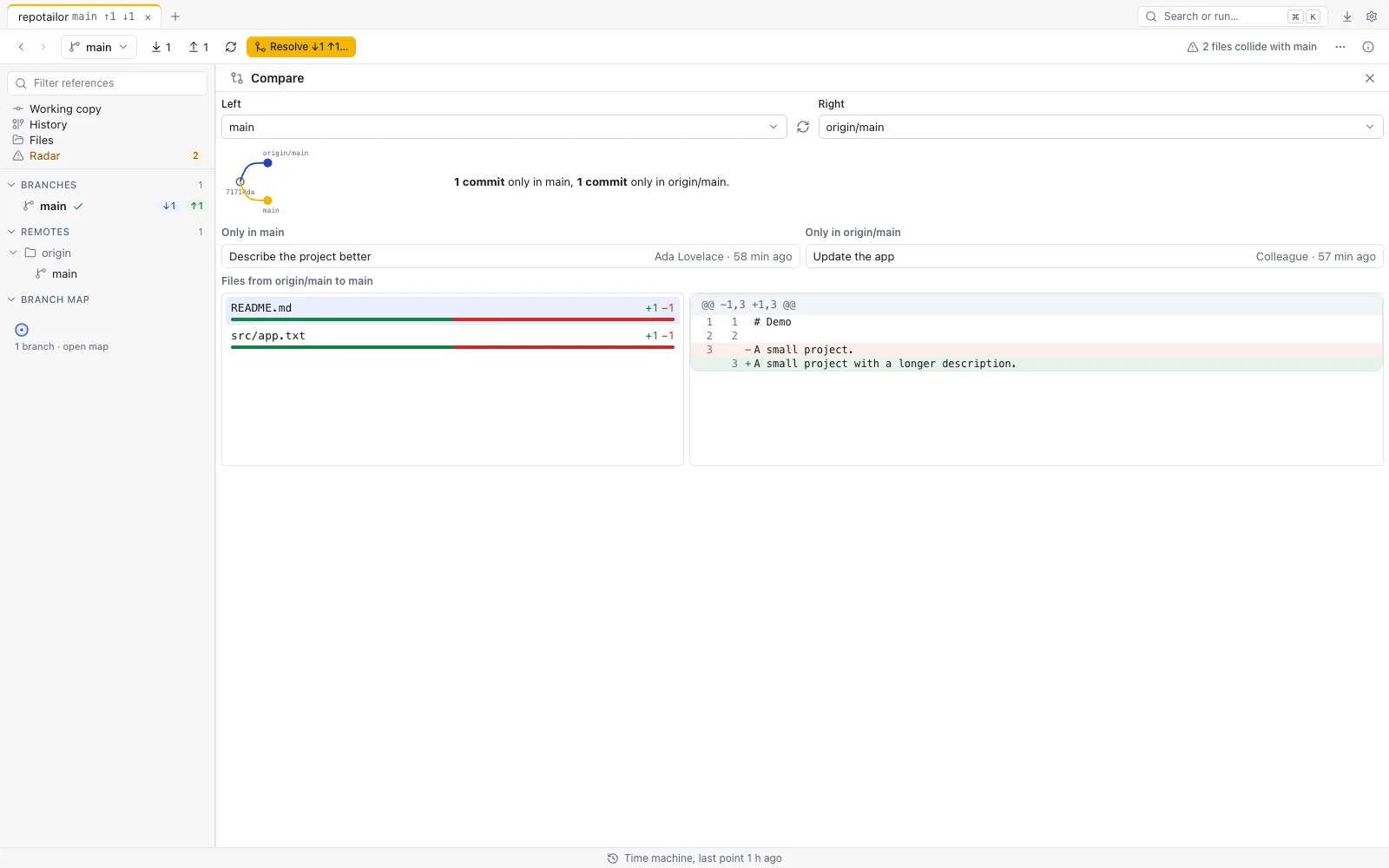
Budget: the popover is drawn after at most 100 ms, even with 1,000 incoming and outgoing commits (at most 200 are shown, the counters count everything).
Changes and commit
On the left the file list, below it the commit box, on the right the diff.6 Hover actions on a file: discard (a restorable copy is kept first), stage, park. In the diff you pick hunks and single lines with checkboxes, without changing mode; the list shows ◐ for a partial selection. ⌘/Ctrl+Enter commits. On a conflict the conflict view opens by itself, with the buttons Mine, Theirs and Both per block. In the graph you select several commits with ⇧-click and open “Squash n commits…” (before and after, one operation with a backup ref and undo) or “Cherry-pick n commits” with a right click; dragging a commit onto a branch is a cherry-pick, dragging a branch onto another a merge or rebase.
AI in place
The ✨ in the message field suggests a commit message, ⌘/Ctrl+Shift+E explains the selection.7 Before every call a small popover shows target, model, size and the number of masked secrets; only “Send” (Enter) sends. The answer streams into the field, Esc restores the old text. The explanation appears in the inspector tab Explain. If AI is not set up, the interface shows no ✨. More on providers, masking and switching it off: AI and privacy.
Charts and statistics
All charts compute from local data and have a text form for screen readers.8 The Branch map draws branches as lines with fork and merge points, the Statistics view shows a commit calendar, weekday and hour, activity and authors by name, filterable by path. There are also a minimap at the edge of the diff, blame by age, the activity of the last 90 days in the file tree and small activity curves per tab. Free shows raw numbers without a ranking; evaluations such as knowledge islands or hotspot scoring belong to Pro.
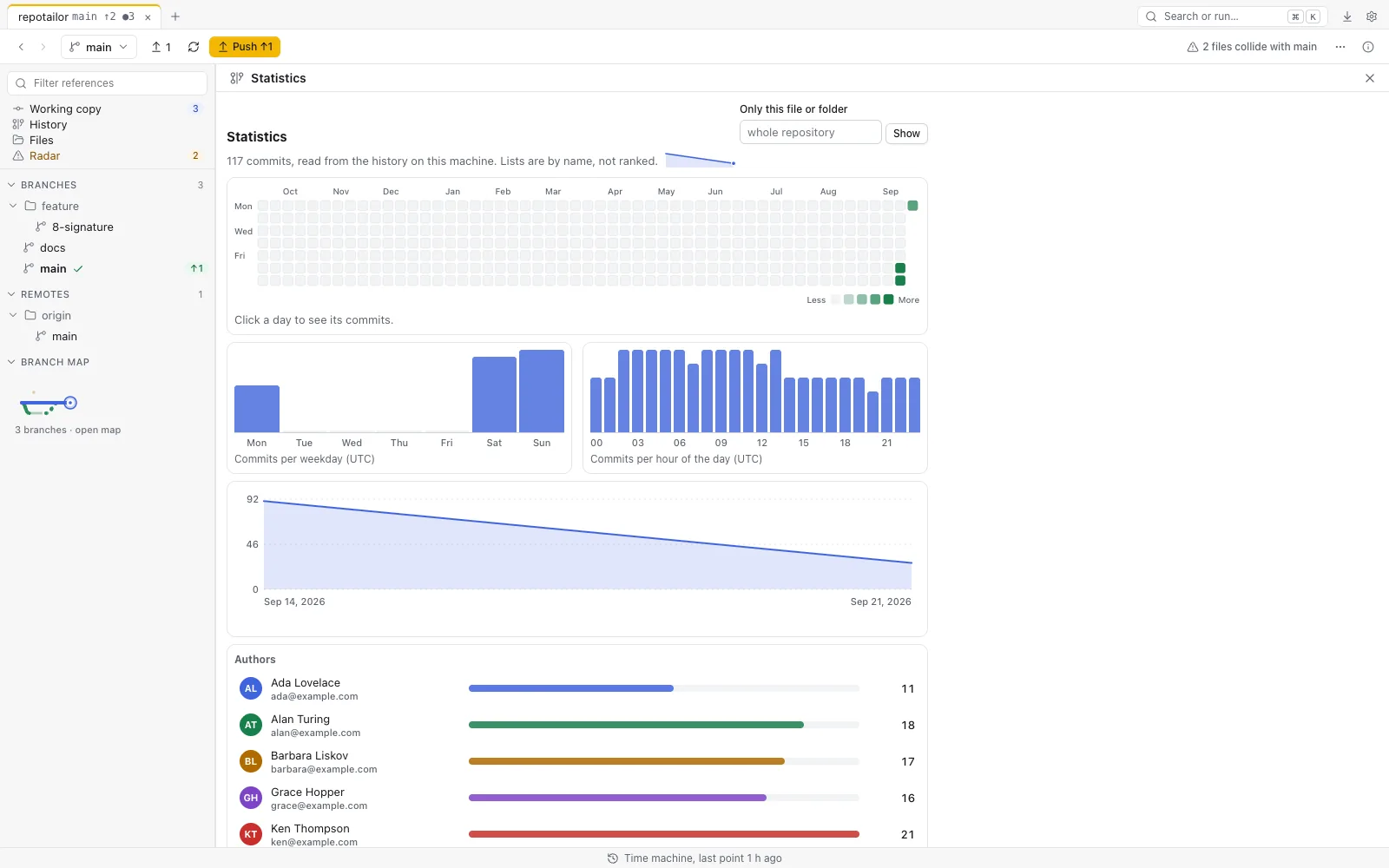
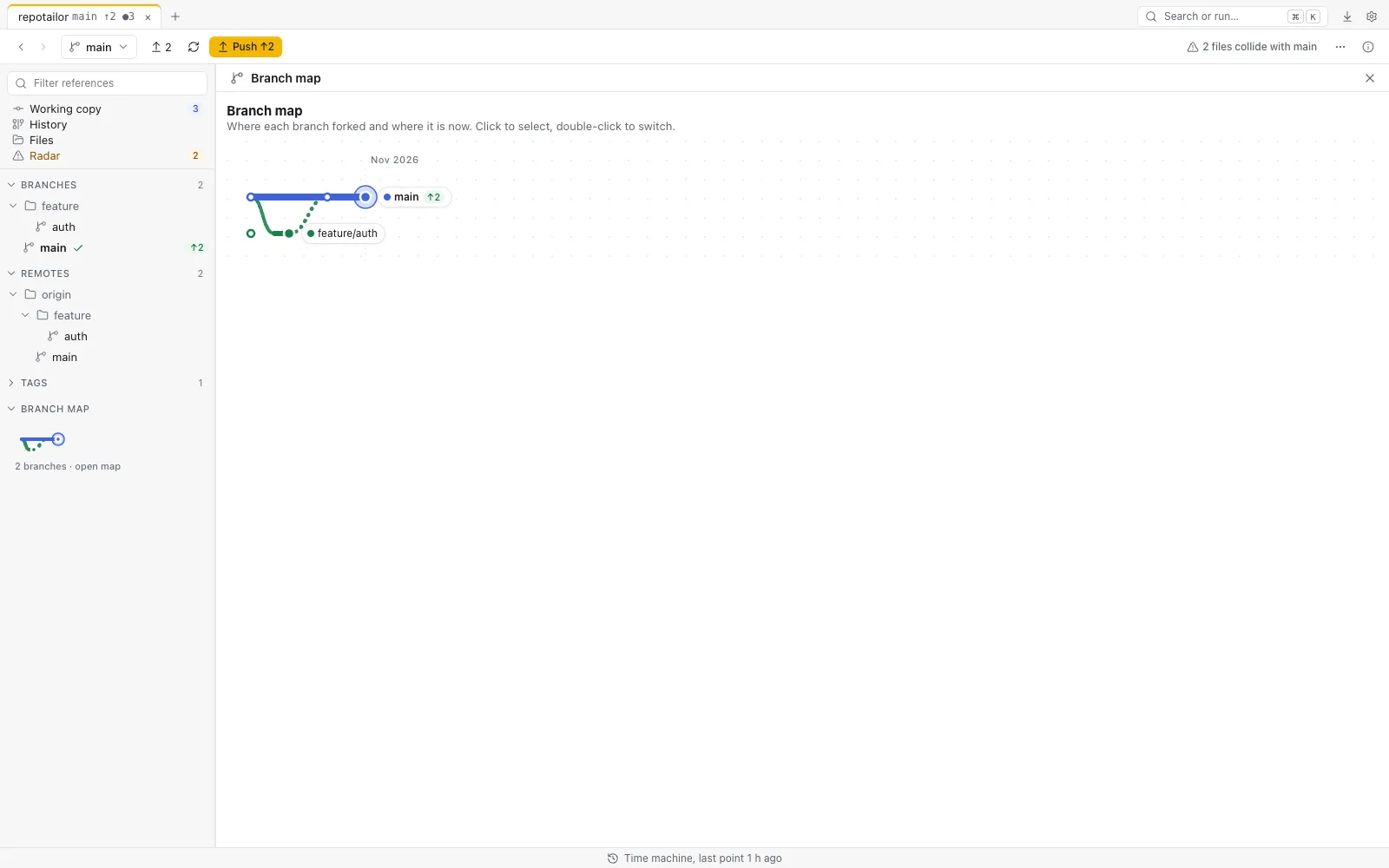
Budgets: statistics for 100,000 commits in at most 1.5 s (in the background, the interface stays usable), the branch map with 500 branches in at most 200 ms.
What does not exist
The zones can be shown, hidden and resized but not freely arranged; there is no theme editor and no multiple windows. AI conflict suggestions and follow-up questions are Pro. The new shortcuts on Windows (for example with AltGr layouts) are checked by hand in acceptance.